Continuing Desktop Access After Your Course
One of DaDesktop's convenient features is that participants can keep working on their course machine for practice once the training wraps up. Before the course concludes, each attendee receives an email asking if they'd like to retain access to their desktop environment.
Ordinarily, a participant's course desktop is deleted shortly after the course finishes. If you prefer to hold onto your desktop to review lab exercises, you can turn your course desktop into a 'Standalone Desktop' for future use.
Head over to your Course and your Desktop machine, then select 'Use desktop after course' next to your machine.
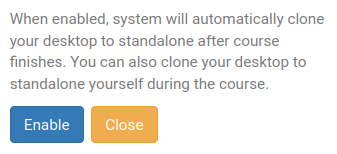
DaDesktop then walks you through an easy process so you can 'Enable' this function.
After enabling it, you'll see this indicator beside your course machine:

Once the course ends, reach your Standalone machine by clicking the Standalones menu at the top of the screen.
Standalone machines that stay idle for a month are removed, but a warning email is always sent beforehand, giving users plenty of time to decide if they want to keep using any Standalone machines they have.
For details on managing the preservation of your Standalone machine, please refer to this page.