Selecting Multiple Course Dates
When setting up a course, you have the option to program it across several different dates. This flexibility lets you tailor when your participants can access the course, making it easier to fit into your planning.
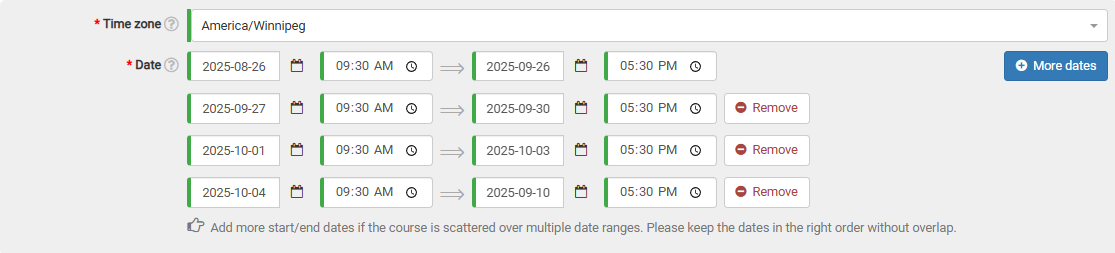
In the dates section of the course form, hit the "More dates" button. A fresh line for choosing dates will immediately appear on the form.

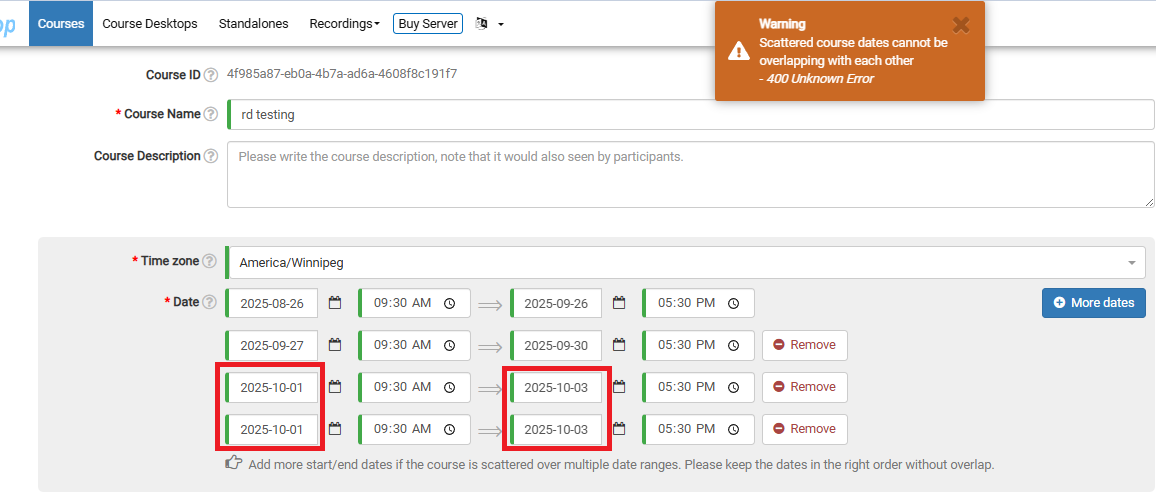
You can keep adding as many date ranges as you require, provided they don't clash or overlap.
If there's any overlap, a warning will pop up at the top of the page when you try to submit the course. In the example below, I've accidentally selected two identical date ranges.