Recycle Bin
Once a course wraps up, all associated machines—including Fresh Start, Trainer, and all participant machines—are automatically removed after a brief interval.
We've introduced a feature that lets you recover these machines from the 'Recycle Bin' for some time after they've been taken off the course. How long they remain restorable isn't fixed—it hinges on factors like server disk space, course usage, and other variables. Generally, you can expect machines to be recoverable for at least a couple of months following course completion.
When the course is still live, you can bring a machine back by selecting Restored; otherwise, use Restored to a Standalone Desktop or, if you prefer, Deleted it outright.
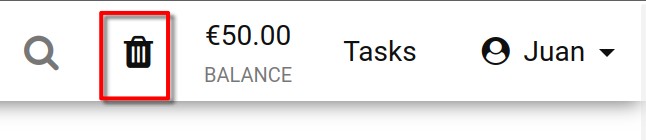
You can check your Recycle bin status by glancing at the Recycle Bin icon. A black icon signals that restorable machines are available; a greyed-out one indicates the bin is empty.
You can also filter the machines in your recycle bin by name, server name, or course name.
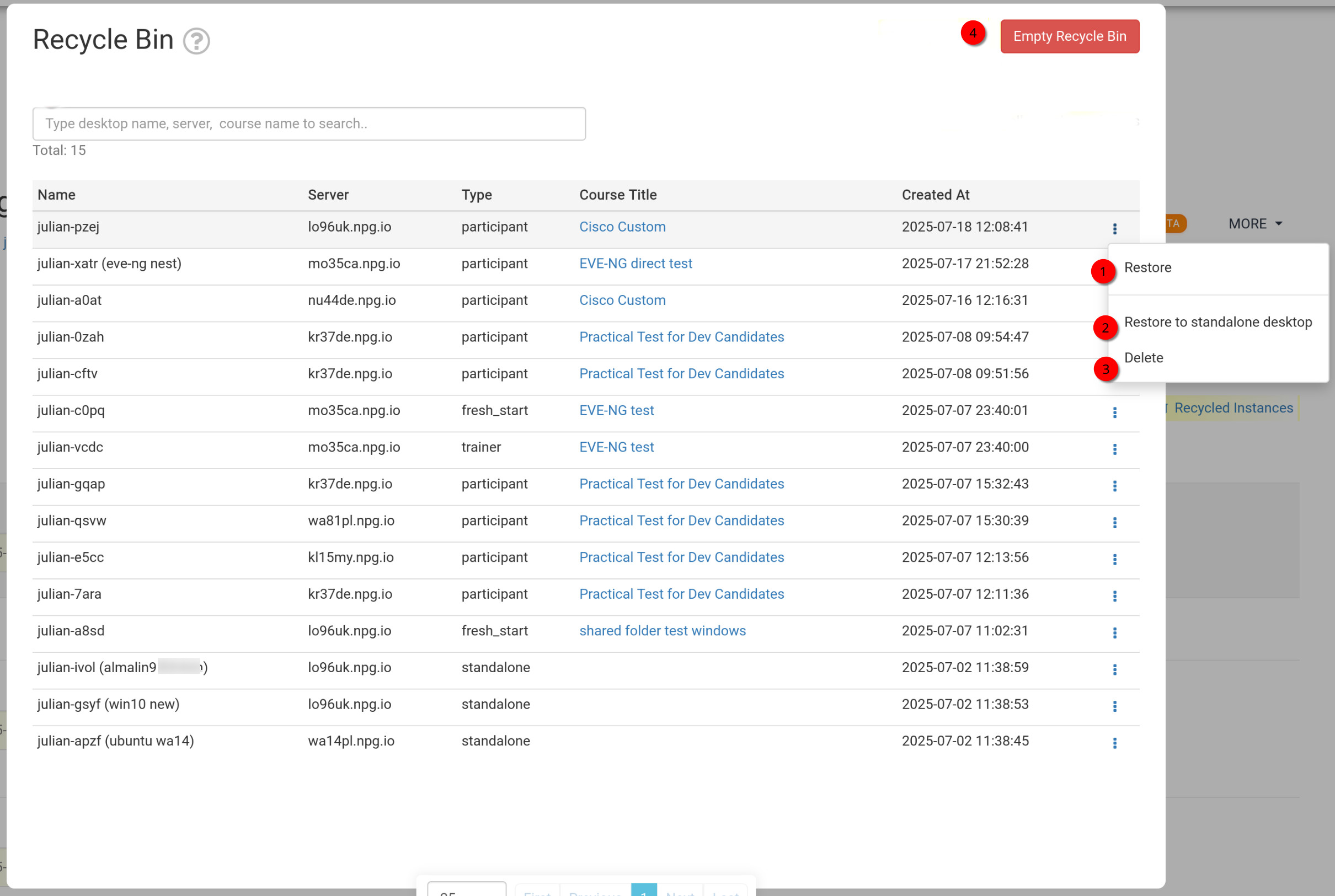
Restoring or Deleting Machines from the Recycle Bin
- Restore - Use this to bring back a machine that was removed from a course; it will return to the course it originally belonged to. If that course is already finished, you won't be able to restore it there—instead, restore it to a standalone machine, as explained below.
- Restore to Standalone Desktop - Typically used when your course has ended and restoration to the course isn't possible. Restoring to a standalone machine gives you more flexibility—it stays available for as long as you need it.
- Delete - Choose this to permanently remove a machine from the Recycle Bin. Note that once deleted from the Recycle Bin, the machine cannot be recovered.
- Empty Recycle Bin - Clicking the red Empty Recycle Bin button deletes all your machines from the Recycle Bin, so they can't be used again.