Trainer's Guide
Harnessing DaDesktop Virtual Desktops to Deliver Seamless Course Training
DaDesktop Virtual Desktops make it simple to build and run online courses, no matter where you are located across Spain.
Please note: DaDesktop (DD) now supports having one or more trainers assigned to each course.
Each trainer gets their own login and can take full control of the ‘Trainer Desktop’ just like they would their own machine.
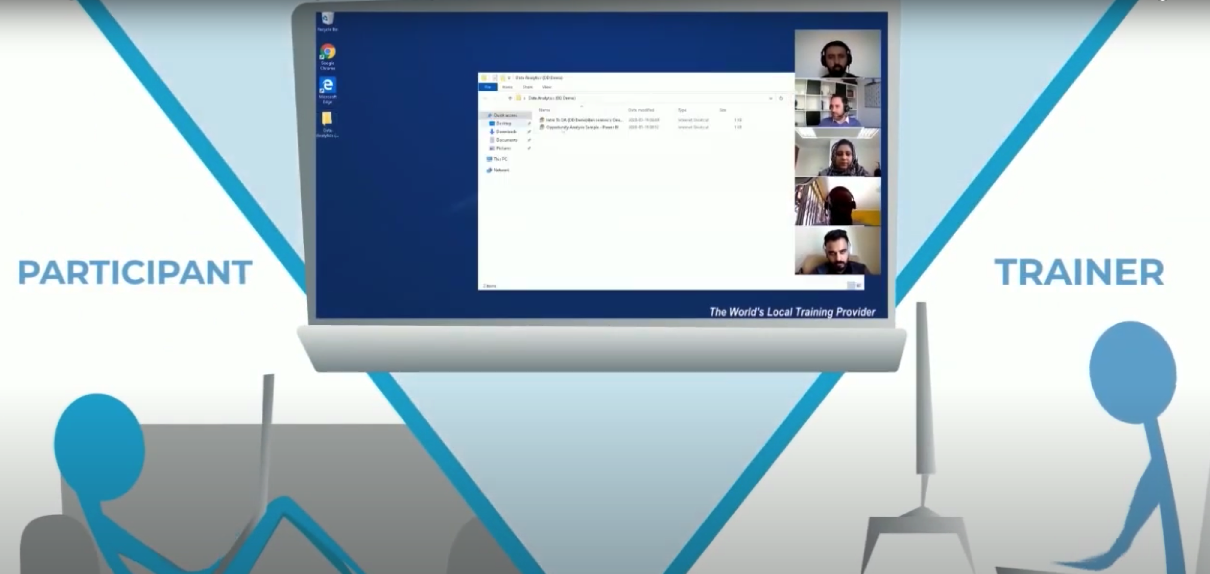
The approach is that both trainers stay on the audio conference, taking turns when necessary, while each can assume control of the Trainer Desktop as needed. This is particularly helpful for longer courses, or those that benefit from the combined expertise of two specialists guiding participants.
Before creating a new course
- The Trainer(s) should contact course organizer to provide the following information:
- Provide the course information: title, schedule, and how many participants.
- Indicate the location of trainers and delegates so the best datacentre can be recommended.
- Supply the trainer's email address(es).
- Recommended browsers for training
- Chrome
- Firefox
- Microsoft Edge
- Network
- All DaDesktop users need a reliable internet connection.
- Using coffee shop Wi-Fi is not advisable, as it tends to be unreliable.
- As a reminder, DaDesktop is a web-based training portal.
- Make sure your connection speed is faster than: "10 Mbps download & 1 Mbps upload"
-
A dual-screen setup and camera are recommended whenever feasible.
First step: How to set up your course
- Course coordinators assist with course creation.
- Add trainers to the course by sending the registration invitation link.
- The trainer then gets an email containing course details and the login link.
- Trainers can log in with their account at https://dd4t.dadesktop.com
- After that, send out the pink course invitations to participants.
-
Note: Even if multiple trainers run the course, only one Trainer machine is used.
Second step: Prepare your "DaDesktop" in the course
- Click "Create from OS template" to set up the Fresh Start desktop. This Fresh Start machine is where the trainer prepares the course content, and later clones it to the Trainer Desktop and the Participants desktops. If you already have a standalone machine with your course, use the dropdown arrow and select the Standalone option.
- Pick the OS template, choose the datacentre closest to your location, and configure it as needed for training. Then click 'Create Desktop'.
- Connect to the desktop and get your course ready within the DaDesktop virtual machine.
- If your course needs multiple machines, install Virt Manager (preferred on Linux) or VirtualBox inside DaDesktop to create several virtual desktops simultaneously. These machines will then be cloned to every participant and to your Trainer machine.
- If you plan to use Windows 10 Pro, we suggest converting documents to PDF because MS Office is not included within DaDesktop.
- Download and prepare materials just like you would on your own computer.
-
For Fresh-Start machines, only use the automatically assigned DHCP IP addresses. DO NOT use Static IP addresses or modify MAC addresses or DNS settings, because this will cause issues when cloned to Course Desktop VMs. Similarly, avoid changing the computer name, as this can lead to problems within DaDesktop.
Contact Tech Support if you need help with any of these points.
Third step: Clone desktop to all participants
- Complete the setup of the Fresh Start desktop, log out, and click to stop it.
- Click "Create from Fresh Start desktop" in the Trainer section to clone a desktop that matches the Fresh Start machine.
- If delegates are located in other regions, use the dropdown under “Create from Fresh-Start Trainer desktop” to clone the desktop to the appropriate region.
-
The dropdown also offers other choices, such as Clone from Standalone and Create from OS Template.
Final step: Join the Training Room
- Both trainers and participants must click on Training Room to enter the session together.
- Upon entering the Training Room, the system automatically clones the FreshStart desktop for every participant.
- Within the Training Room, audio and video recordings can be made automatically.
- Each delegate sees two desktops—the Trainer's desktop and their own—so there's no need to share screens.
- From the Training Room, the Trainer can view all participants' machines alongside their own, and can take over any machine individually to assist. Each participant only sees their own machine and the Trainer's Desktop.